Posts Tagged "WooCommerce"
How to add custom product tab to WooCommerce single product page
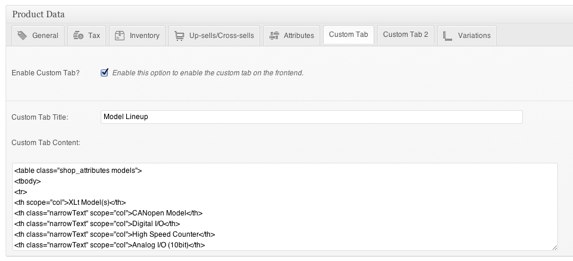
Our company store, Horner APG, required additional tabs to be displayed on the woocommerce single product page. Below is the code we’re using to power our additional tabs. The code below will create an additional panel in your product editor. When enabled, via a checkbox, it will display the panel and it’s title on the front-end.
Future Enhancements:
- Enable the HTML editor in the back-end for the custom panel.
- Add user interface so users can add additional panels on per product basis.
I’m not the strongest coder so feel free to take the code below and expand on it. Please share with the rest of the community how you made it better. Cheers!
<?php
/**
* Custom Tabs for Product display
*
* Outputs an extra tab to the default set of info tabs on the single product page.
*/
function custom_tab_options_tab() {
?>
<li class="custom_tab"><a href="#custom_tab_data"><?php _e('Custom Tab', 'woothemes'); ?></a></li>
<?php
}
add_action('woocommerce_product_write_panel_tabs', 'custom_tab_options_tab');
/**
* Custom Tab Options
*
* Provides the input fields and add/remove buttons for custom tabs on the single product page.
*/
function custom_tab_options() {
global $post;
$custom_tab_options = array(
'title' => get_post_meta($post->ID, 'custom_tab_title', true),
'content' => get_post_meta($post->ID, 'custom_tab_content', true),
);
?>
<div id="custom_tab_data" class="panel woocommerce_options_panel">
<div class="options_group">
<p class="form-field">
<?php woocommerce_wp_checkbox( array( 'id' => 'custom_tab_enabled', 'label' => __('Enable Custom Tab?', 'woothemes'), 'description' => __('Enable this option to enable the custom tab on the frontend.', 'woothemes') ) ); ?>
</p>
</div>
<div class="options_group custom_tab_options">
<p class="form-field">
<label><?php _e('Custom Tab Title:', 'woothemes'); ?></label>
<input type="text" size="5" name="custom_tab_title" value="<?php echo @$custom_tab_options['title']; ?>" placeholder="<?php _e('Enter your custom tab title', 'woothemes'); ?>" />
</p>
<p class="form-field">
<?php _e('Custom Tab Content:', 'woothemes'); ?>
</p>
<table class="form-table">
<tr>
<td>
<textarea class="theEditor" rows="10" cols="40" name="custom_tab_content" placeholder="<?php _e('Enter your custom tab content', 'woothemes'); ?>"><?php echo @$custom_tab_options['content']; ?></textarea>
</td>
</tr>
</table>
</div>
</div>
<?php
}
add_action('woocommerce_product_write_panels', 'custom_tab_options');
/**
* Process meta
*
* Processes the custom tab options when a post is saved
*/
function process_product_meta_custom_tab( $post_id ) {
update_post_meta( $post_id, 'custom_tab_enabled', ( isset($_POST['custom_tab_enabled']) && $_POST['custom_tab_enabled'] ) ? 'yes' : 'no' );
update_post_meta( $post_id, 'custom_tab_title', $_POST['custom_tab_title']);
update_post_meta( $post_id, 'custom_tab_content', $_POST['custom_tab_content']);
}
add_action('woocommerce_process_product_meta', 'process_product_meta_custom_tab');
/** Add extra tabs to front end product page **/
if (!function_exists('woocommerce_product_custom_tab')) {
function woocommerce_product_custom_tab() {
global $post;
$custom_tab_options = array(
'enabled' => get_post_meta($post->ID, 'custom_tab_enabled', true),
'title' => get_post_meta($post->ID, 'custom_tab_title', true),
);
if ( $custom_tab_options['enabled'] != 'yes' )
return false;
?>
<li><a href="#tab-models"><?php echo $custom_tab_options['title']; ?></a></li>
<?php
}
}
add_action( 'woocommerce_product_tabs', 'woocommerce_product_custom_tab', 11 );
if (!function_exists('woocommerce_product_custom_panel')) {
function woocommerce_product_custom_panel() {
global $post;
$custom_tab_options = array(
'title' => get_post_meta($post->ID, 'custom_tab_title', true),
'content' => get_post_meta($post->ID, 'custom_tab_content', true),
);
?>
<div class="panel" id="tab-models">
<?php echo $custom_tab_options['content']; ?>
</div>
<?php
}
}
add_action( 'woocommerce_product_tab_panels', 'woocommerce_product_custom_panel', 11 );
?>
WooCommerce: Add video support to product gallery
Background
I’m the marketing manager over at Horner APG, a global industrial automation control company, currently responsible for the design and development of our new website.
It’s no secret that I’m huge fan of WooCommerce. The Woo team is simply creating a wonderful product backed by a great community of support. I may have stepped out a bit from the norm by choosing it to power our corporate store but I think it’ll pay off in the long run.
While building our new site I noticed our old store included links to product videos powered by YouTube. By default, as designed by WordPress, videos are not supported by the WordPress image gallery. As a result, I started looking for a solution that would modify the default behavior to accept external links. Below is the solution I used to make that happen.
Solution
Eventually, I found some code shared by Geekee Media that adds a “custom link” input box in the WordPress “Add Media panel.”
Geekee Media has since updated the code below and it’s freely available on Github if you’d like to grab the latest version which I haven’t tested yet. Hit me up in the comments below if this process works with his latest code submission.
- Add the first block of code below to your functions.php file.
- Add the second block of code below to your functions.php file.
- I’ve modified it to include a unique link ID (id=”tip4″) that’s being called in my footer with specific Fancybox settings. I know it’s not the cleanest process but I’ll leave it to you to tidy it up.
- Add the third block of code to your footer (Fancybox settings).
- How to include a video in the product gallery:
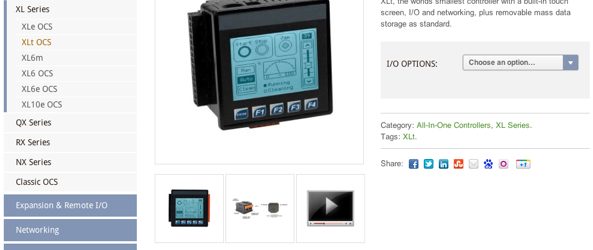
Demo: Horner XLt Industrial Automation Controller
First block of code
Adds a custom field to your image gallery that you’ll use to include your video link.
/* -------------------------------
CUSTOM LINK PER GALLERY IMAGE WHICH ALLOWS US TO DISPLAY VIDEO in WP GALLERY
------------------------------- */
function rt_image_attachment_fields_to_edit($form_fields, $post) {
$form_fields["rt-image-link"] = array(
"label" => __("Custom Link"),
"input" => "text", // default
"value" => get_post_meta($post->ID, "_rt-image-link", true),
//"helps" => __("To be used with special slider added via [rt_carousel] shortcode."),
);
return $form_fields;
}
add_filter("attachment_fields_to_edit", "rt_image_attachment_fields_to_edit", null, 2);
function rt_image_attachment_fields_to_save($post, $attachment) {
// $attachment part of the form $_POST ($_POST[attachments][postID])
// $post['post_type'] == 'attachment'
if( isset($attachment['rt-image-link']) ){
// update_post_meta(postID, meta_key, meta_value);
update_post_meta($post['ID'], '_rt-image-link', $attachment['rt-image-link']);
}
return $post;
}
add_filter("attachment_fields_to_save", "rt_image_attachment_fields_to_save", null , 2);
/* -------------------------------
MODIFIED CORE FUNCTION
------------------------------- */
add_shortcode('gallery', 'geekee_gallery_shortcode');
/**
* The Gallery shortcode.
*
* This implements the functionality of the Gallery Shortcode for displaying
* WordPress images on a post.
*
* @since 2.5.0
*
* @param array $attr Attributes attributed to the shortcode.
* @return string HTML content to display gallery.
*/
function geekee_gallery_shortcode($attr) {
global $post, $wp_locale;
static $instance = 0;
$instance++;
// Allow plugins/themes to override the default gallery template.
$output = apply_filters('post_gallery', '', $attr);
if ( $output != '' )
return $output;
// We're trusting author input, so let's at least make sure it looks like a valid orderby statement
if ( isset( $attr['orderby'] ) ) {
$attr['orderby'] = sanitize_sql_orderby( $attr['orderby'] );
if ( !$attr['orderby'] )
unset( $attr['orderby'] );
}
extract(shortcode_atts(array(
'order' => 'ASC',
'orderby' => 'menu_order ID',
'id' => $post->ID,
'itemtag' => 'dl',
'icontag' => 'dt',
'captiontag' => 'dd',
'columns' => 3,
'size' => 'thumbnail',
'include' => '',
'exclude' => ''
), $attr));
$id = intval($id);
if ( 'RAND' == $order )
$orderby = 'none';
if ( !empty($include) ) {
$include = preg_replace( '/[^0-9,]+/', '', $include );
$_attachments = get_posts( array('include' => $include, 'post_status' => 'inherit', 'post_type' => 'attachment', 'post_mime_type' => 'image', 'order' => $order, 'orderby' => $orderby) );
$attachments = array();
foreach ( $_attachments as $key => $val ) {
$attachments[$val->ID] = $_attachments[$key];
}
} elseif ( !empty($exclude) ) {
$exclude = preg_replace( '/[^0-9,]+/', '', $exclude );
$attachments = get_children( array('post_parent' => $id, 'exclude' => $exclude, 'post_status' => 'inherit', 'post_type' => 'attachment', 'post_mime_type' => 'image', 'order' => $order, 'orderby' => $orderby) );
} else {
$attachments = get_children( array('post_parent' => $id, 'post_status' => 'inherit', 'post_type' => 'attachment', 'post_mime_type' => 'image', 'order' => $order, 'orderby' => $orderby) );
}
if ( empty($attachments) )
return '';
if ( is_feed() ) {
$output = "\n";
foreach ( $attachments as $att_id => $attachment )
$output .= wp_get_attachment_link($att_id, $size, true) . "\n";
return $output;
}
$itemtag = tag_escape($itemtag);
$captiontag = tag_escape($captiontag);
$columns = intval($columns);
$itemwidth = $columns > 0 ? floor(100/$columns) : 100;
$float = is_rtl() ? 'right' : 'left';
$selector = "gallery-{$instance}";
$gallery_style = $gallery_div = '';
if ( apply_filters( 'use_default_gallery_style', true ) )
$gallery_style = "
<style type='text/css'>
#{$selector} {
margin: auto;
}
#{$selector} .gallery-item {
float: {$float};
margin-top: 10px;
text-align: center;
width: {$itemwidth}%;
}
#{$selector} img {
border: 2px solid #cfcfcf;
}
#{$selector} .gallery-caption {
margin-left: 0;
}
</style>
<!-- see gallery_shortcode() in wp-includes/media.php -->";
$size_class = sanitize_html_class( $size );
$gallery_div = "<div id='$selector' class='gallery galleryid-{$id} gallery-columns-{$columns} gallery-size-{$size_class}'>";
$output = apply_filters( 'gallery_style', $gallery_style . "\n\t\t" . $gallery_div );
$i = 0;
foreach ( $attachments as $id => $attachment ) {
$link = isset($attr['link']) && 'file' == $attr['link'] ? wp_get_attachment_link($id, $size, false, false) : wp_get_attachment_link($id, $size, true, false);
/* -------------------------------
MODIFICATION ################
------------------------------- */
$image = wp_get_attachment_image($id, $size, false);
$attachment_meta = get_post_meta($id, '_rt-image-link', true);
if($attachment_meta){
if($attr['link'] == 'custom_url'){
$link = $attachment_meta;
}
}
$output .= "<{$itemtag} class='gallery-item'>";
$output .= "<{$icontag} class='gallery-icon'>";
/* -------------------------------
MODIFICATION ################
------------------------------- */
if($attachment_meta){
$output .= "<a href='$link'>$image</a>";
} else {
$output .= $link;
}
$output .= "</{$icontag}>";
if ( $captiontag && trim($attachment->post_excerpt) ) {
$output .= "<{$captiontag} class='gallery-caption'>" . wptexturize($attachment->post_excerpt) . "</{$captiontag}>";
}
$output .= "</{$itemtag}>";
if ( $columns > 0 && ++$i % $columns == 0 )
$output .= '<br style="clear: both;" />';
}
$output .= "<br style='clear: both;' /></div>\n";
return $output;
}
Second block of code
Then I assigned a specific ID to the video link. This class triggered the Fancybox plugin that currently powers the WooCommerce product image gallery.
if (!function_exists('woocommerce_show_product_thumbnails')) {
function woocommerce_show_product_thumbnails() {
global $_product, $post;
echo '<div class="thumbnails">';
$thumb_id = get_post_thumbnail_id();
$small_thumbnail_size = apply_filters('single_product_small_thumbnail_size', 'shop_thumbnail');
$args = array(
'post_type' => 'attachment',
'order' => 'ASC',
'orderby' => 'menu_order ID',
'numberposts' => -1,
'post_status' => null,
'post_parent' => $post->ID,
'post__not_in' => array($thumb_id),
'post_mime_type' => 'image',
'meta_query' => array(
array(
'key' => '_woocommerce_exclude_image',
'value' => '1',
'compare' => '!='
)
)
);
$attachments = get_posts($args);
if ($attachments) :
$loop = 0;
$columns = apply_filters('woocommerce_product_thumbnails_columns', 3);
foreach ( $attachments as $attachment ) :
$loop++;
$_post = & get_post( $attachment->ID );
$url = wp_get_attachment_url($_post->ID);
$post_title = esc_attr($_post->post_title);
$image = wp_get_attachment_image($attachment->ID, $small_thumbnail_size);
$attachment_meta = get_post_meta($_post->ID, '_rt-image-link', true);
$link = $attachment_meta;
if (isset($attachment_meta['true'])) {
echo '<a href="'.$link.'" title="'.$post_title.'" rel="thumbnails" id="tip4" class=" ';
if ($loop==1 || ($loop-1)%$columns==0) echo 'first';
if ($loop%$columns==0) echo 'last';
echo '">'.$image.'</a>';
}
else {
echo '<a href="'.$url.'" title="'.$post_title.'" rel="thumbnails" class="zoom ';
if ($loop==1 || ($loop-1)%$columns==0) echo 'first';
if ($loop%$columns==0) echo 'last';
echo '">'.$image.'</a>';
}
endforeach;
endif;
wp_reset_query();
echo '</div>';
}
}
Third block of code.
This snippet of code is to trigger the Fancybox plugin. Edit the settings for your purposes.
<script type="text/javascript">
$("#tip4").click(function() {
$.fancybox({
'padding' : 0,
'autoScale' : false,
'transitionIn' : 'none',
'transitionOut' : 'none',
'title' : this.title,
'width' : 680,
'height' : 495,
'href' : this.href.replace(new RegExp("watch\\?v=", "i"), 'v/'),
'type' : 'swf',
'swf' : {
'wmode' : 'transparent',
'allowfullscreen' : 'true'
}
});
return false;
});
</script>
Final Thoughts
I’m by no means the strongest coder. So if you cook up a better solution please share it with the rest of us. Maybe I don’t need the full second block of code? I know I was having issues a few months ago with product image order so part of the second block of code probably includes my fix. It might not be needed any longer or an issue specific to my project.
WooCommerce Arrange Order of Product Images

Update:
The code below is no longer necessary as long as your using the latest version of WooCommerce. I installed 1.5.2 and noticed that the order of images can now be controlled via a template file. Thus, the code below is no longer needed because, by default, WooCommerce adheres to the image order set in the admin. Cheers!
I recently started working with WooCommerce for a client project. WooCommerce is an eCommerce solution for WordPress that was forked from Jigoshop. There are now many eCommerce solutions to choose from with WordPress.
My personal favorites are Shopp and WooCommerce coming in a close second. It really depends on the type of project I’m working on as it should for you as well.
Make WooCommerce adhere to image order:
While working with adding images to a product in WooCommerce I noticed that it disregarded image order when displaying the product on the front-end.
To fix the issue I copied the function from ‘Woocommerce_template_functions.php’ into my functions.php and added “order and orderby” to the array.
The complete code is below for you to grab. This is a simple fix but often I’m the one looking for those simple fixes so I’m sure others are out there.
If there’s a more elegant way to fix this please share. Thanks!