WordPress History
WooCommerce Arrange Order of Product Images

I recently started working with WooCommerce for a client project. WooCommerce is an eCommerce solution for WordPress that was forked from Jigoshop. There are now many eCommerce solutions to choose from with WordPress.
My personal favorites are Shopp and WooCommerce coming in a close second. It really depends on the type of project I’m working on as it should for you as well.
Make WooCommerce adhere to image order:
While working with adding images to a product in WooCommerce I noticed that it disregarded image order when displaying the product on the front-end.
To fix the issue I copied the function from ‘Woocommerce_template_functions.php’ into my functions.php and added “order and orderby” to the array.
The complete code is below for you to grab. This is a simple fix but often I’m the one looking for those simple fixes so I’m sure others are out there.
If there’s a more elegant way to fix this please share. Thanks!
Disable WordPress from Automatically Inserting Paragraph Tags

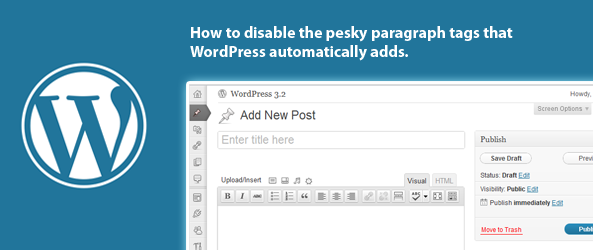
By default, WordPress automatically inserts paragraph tags into your content while using the post editor – this often gets in the way when you’re trying to space out your text, and could also create validation issues.
As a result, if you want to strip the automatically inserted paragraph tags from your content, simply insert this line in your PHP template file above ‘the_content’ tag:
*For the less tech savvy this solution requires you to FTP into your web site and access your theme template files. Once in there you’ll need to add this snippet of code directly above the ‘the_content’ snippet. Make sense? Hit me up in the comments if not.
Hopefully this helps others remove those pesky paragraph tags. Cheers!
WordPress: Multiple Single.php Template Files

I recently ran into an issue on a WordPress project that required multiple variations of the “single.php” template file based on a blog category. Unfortunately, there isn’t any built in support for multiple “single.php” template files like there are for categories. As a result, the quickest workaround is to convert your “single.php” into a PHP If Statement.
Here’s the breakdown:
- Create two new template files based on the single.php template.
- Example: single-blog.php AND single.unique.php
- Copy the contents of your single.php file to your two new template files.
- Customize the code of a template file to make it unique from the other.
- Replace the contents of your single.php file with this PHP If Statement:
Find your Category ID Number:
You can find the category ID number by navigating to your ‘categories’ manager in WordPress. From there hover over the category name and look at the link. It should have an ID associated with that category.
Hit me up in the comments if you need help. Cheers!